- Deutsch: Diese Seite ist nicht ins Deutsche übersetzt
Manage account
This section covers managing your account within Grid Vision, covering the procedures for signing in and signing out.
Sign in to Grid Vision
Accessing the Application
Follow these steps to sign in to Grid Vision:
-
Go to Grid Vision
-
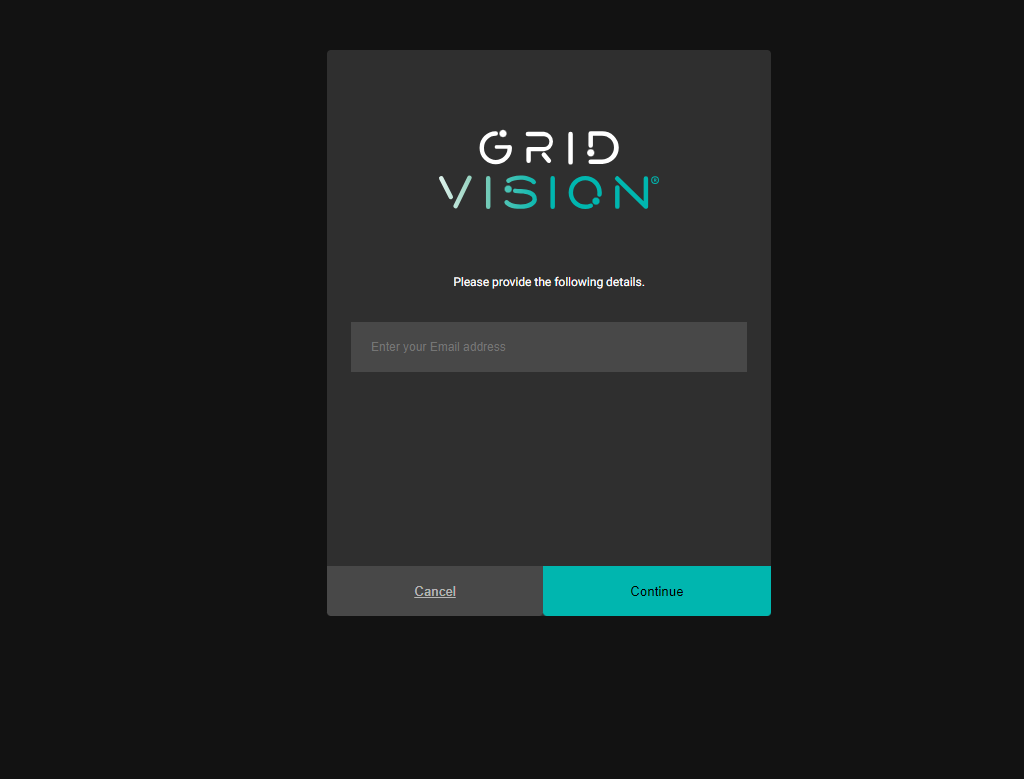
Enter your email address and click continue
-
The system will automatically check if Single-Sign-On (SSO) is activated for your company
-
If SSO is enabled, you will be taken to your company's login procedure to authenticate
-
You can skip the next steps if SSO is enabled
-
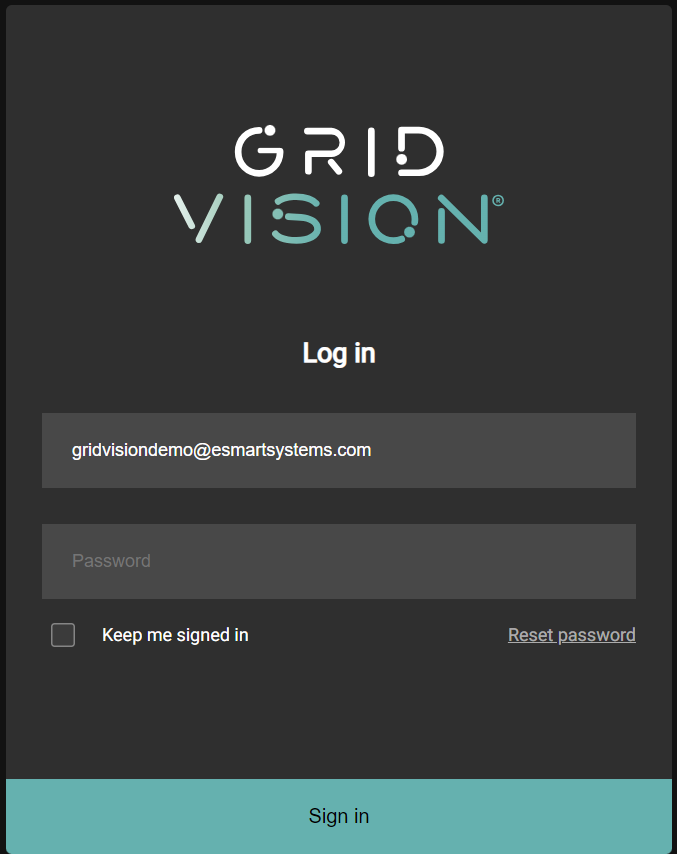
If not, you will be prompted to enter your password
-
If this is the first time you access Grid Vision, click on "Reset password", otherwise type in your password and click continue.
-
You can skip the next steps if you already have a password
-
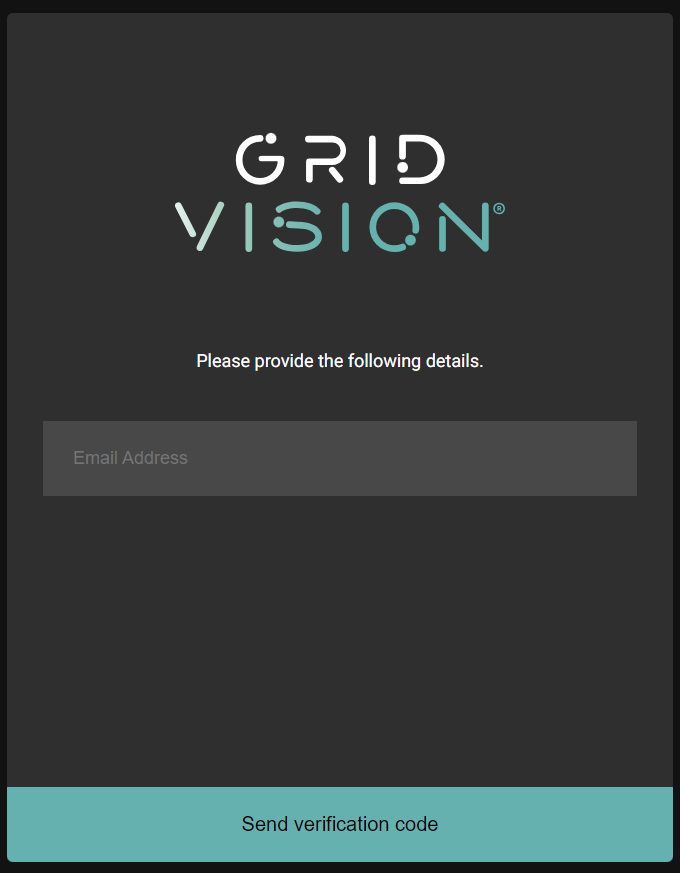
Enter the email address associated with your account and click "Send verification code"
-
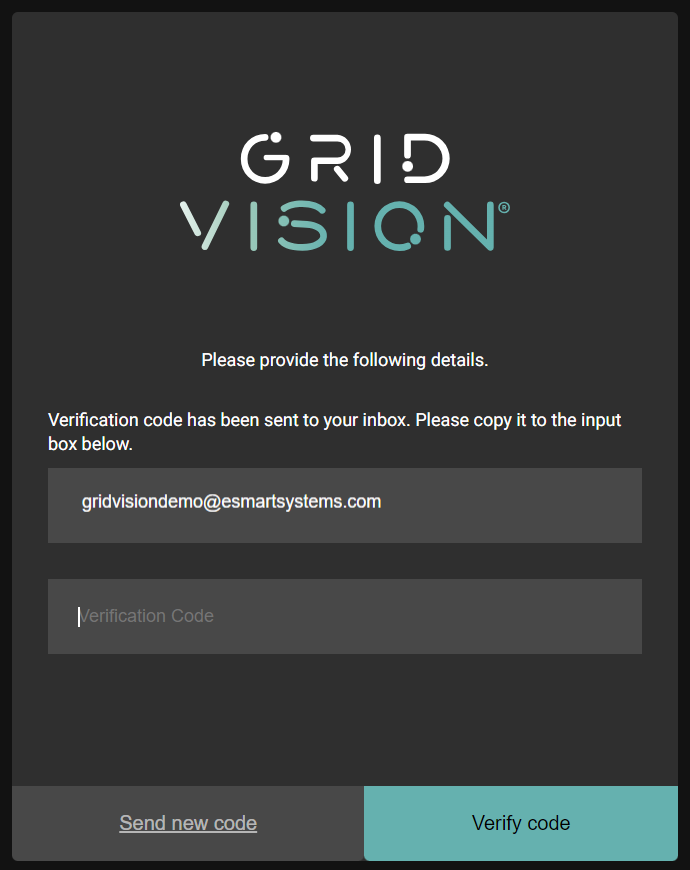
Check email inbox for a verification code from "Microsoft on behalf of eSmartGlobalB2C"
-
Enter the verification code and click "Verify Code", then click continue
-
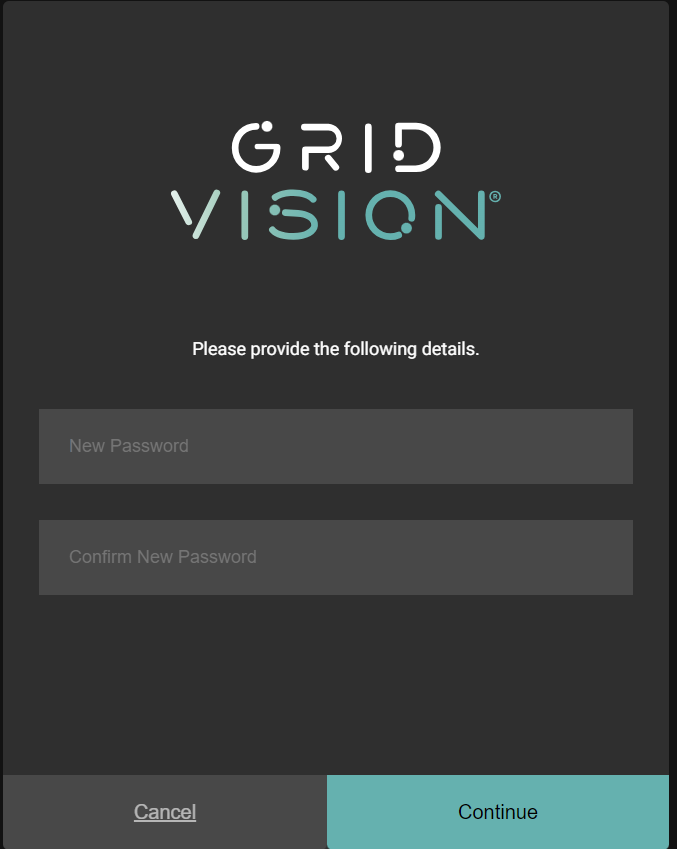
Create a new password following these criteria: 8-16 characters, containing 3 out of 4 of the following: lowercase characters, uppercase characters, digits (0-9), and at least one of the following symbols: @ # $ % ^ & * - _ + = [ ] { } | \ : ' , ? / ` ~ " ( ) ; .
-
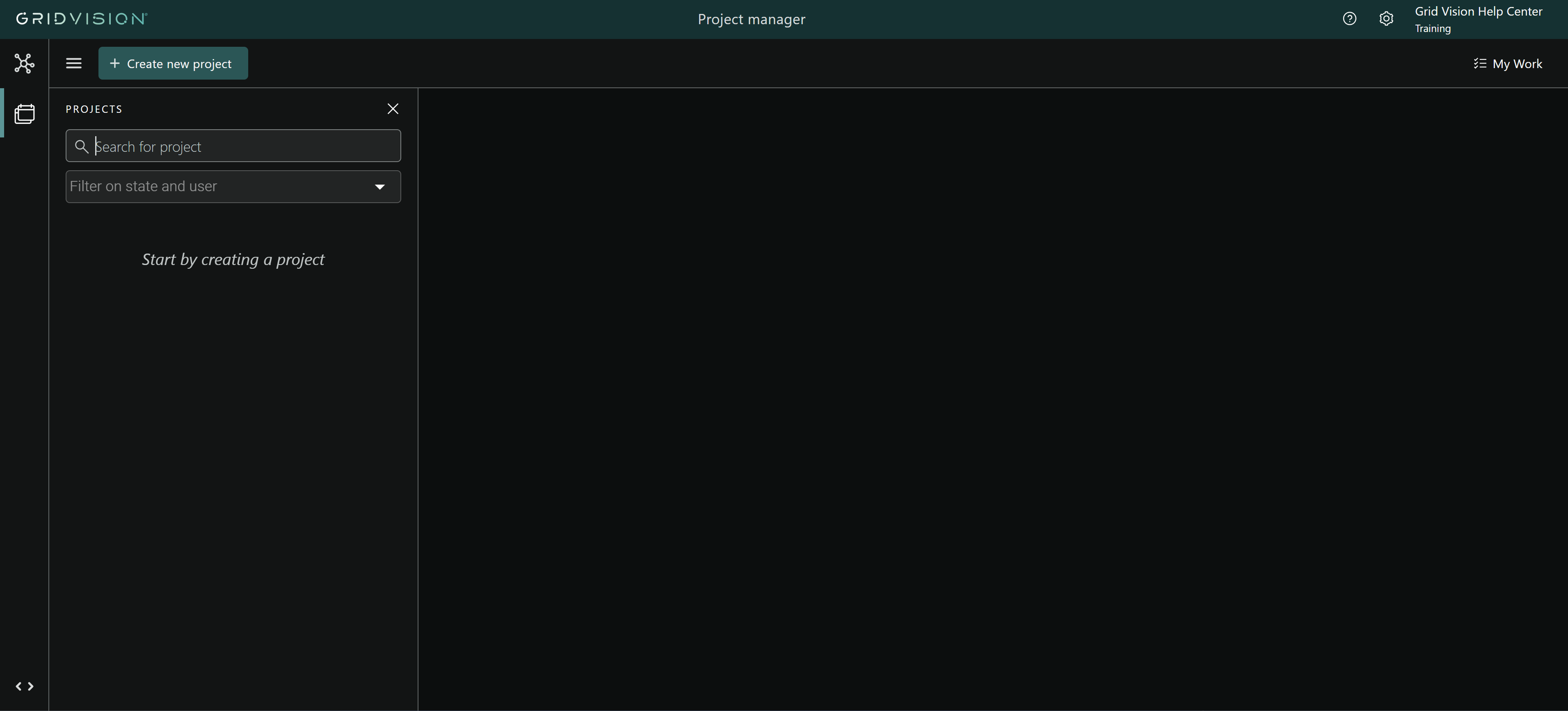
Click "Continue" to sign in and you will be redirected to the Grid Vision landing page / home screen.
Sign out of Grid Vision
To sign out of your Grid Vision account, follow these steps:
-
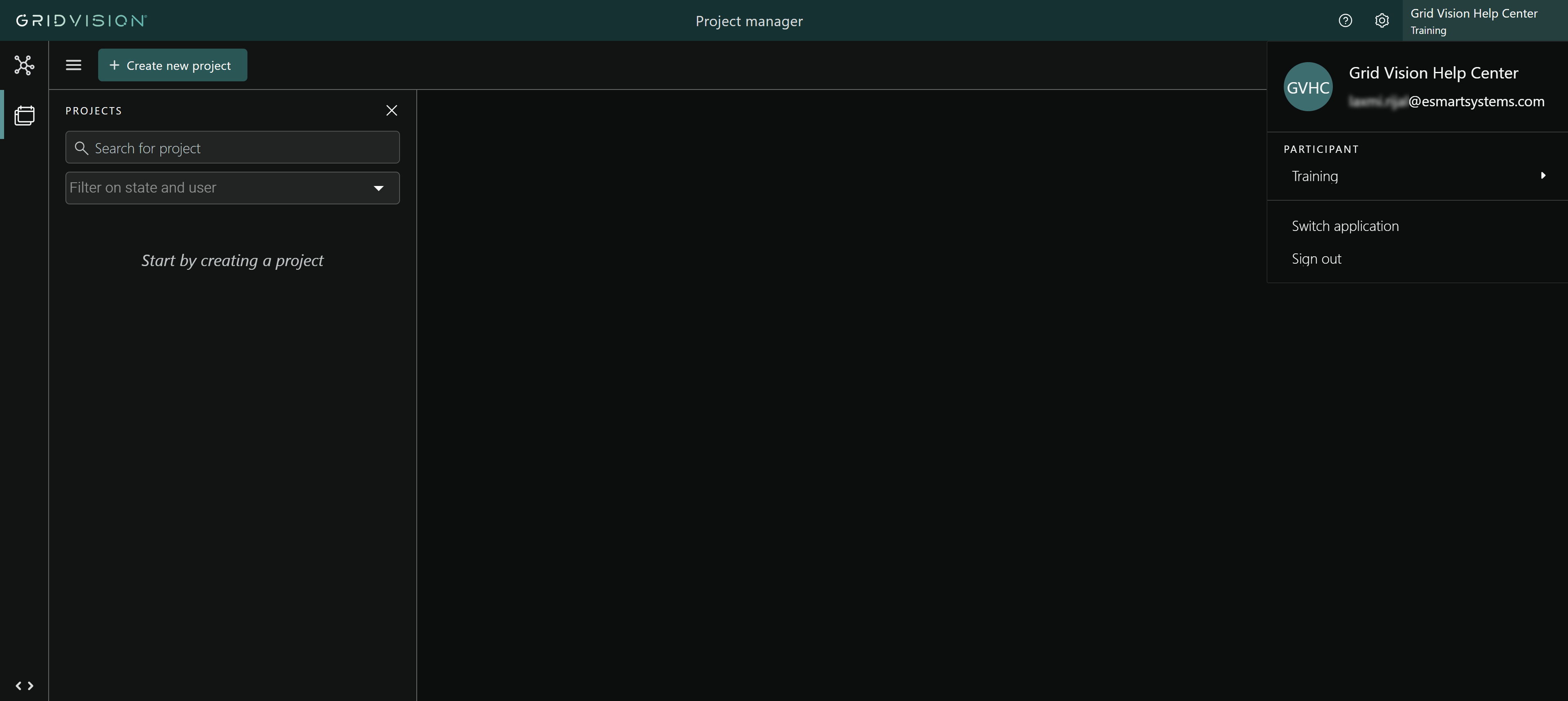
Click on the user icon in the app bar located in the upper right corner.
-
Click the "Sign out" option.
-
After successfully signing out, you will be redirected to the sign-in page.